Employee, manager, or admin · ~2 min
Add Faciro to iPhone Home Screen
Install Faciro like an app on iPhone so lock-screen alerts and shift reminders work.
Step 1
Open Faciro in Safari
On your iPhone, open Safari and go to www.faciro.com. Log in with your email or phone and password.
Step 2
Tap Share
At the bottom of Safari, tap the Share button — square with an arrow pointing up.
Step 3
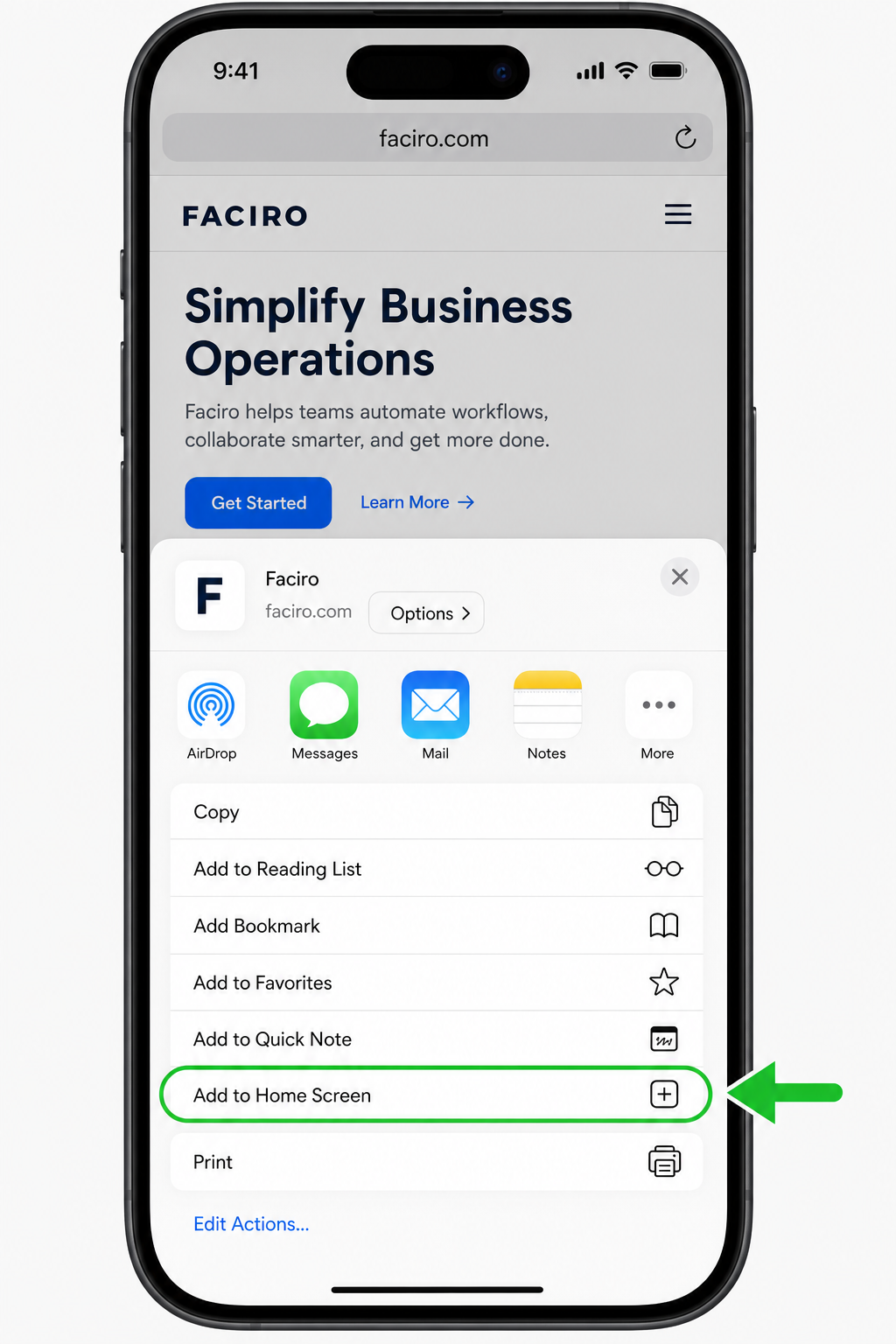
Add to Home Screen
Scroll the menu and tap Add to Home Screen. Keep the name Faciro (or change it if you like), then tap Add.
Add to Home Screen — then tap Add Step 4
Open from the Home Screen icon
From now on, open Faciro by tapping the Faciro icon on your Home Screen — not an old Safari tab. That is what makes phone alerts work on iPhone.
Step 5
Turn on alerts (optional)
Open Faciro from the Home Screen icon → Profile → Alerts → Enable notifications. Tap Allow when iPhone asks.
Related guides