Admin · ~8 min
Company Settings — every section explained
Settings is where you set company-wide defaults. Open Settings from the top menu. Take it one card at a time — you do not need to fill everything on day one.
Step 1
Open Settings
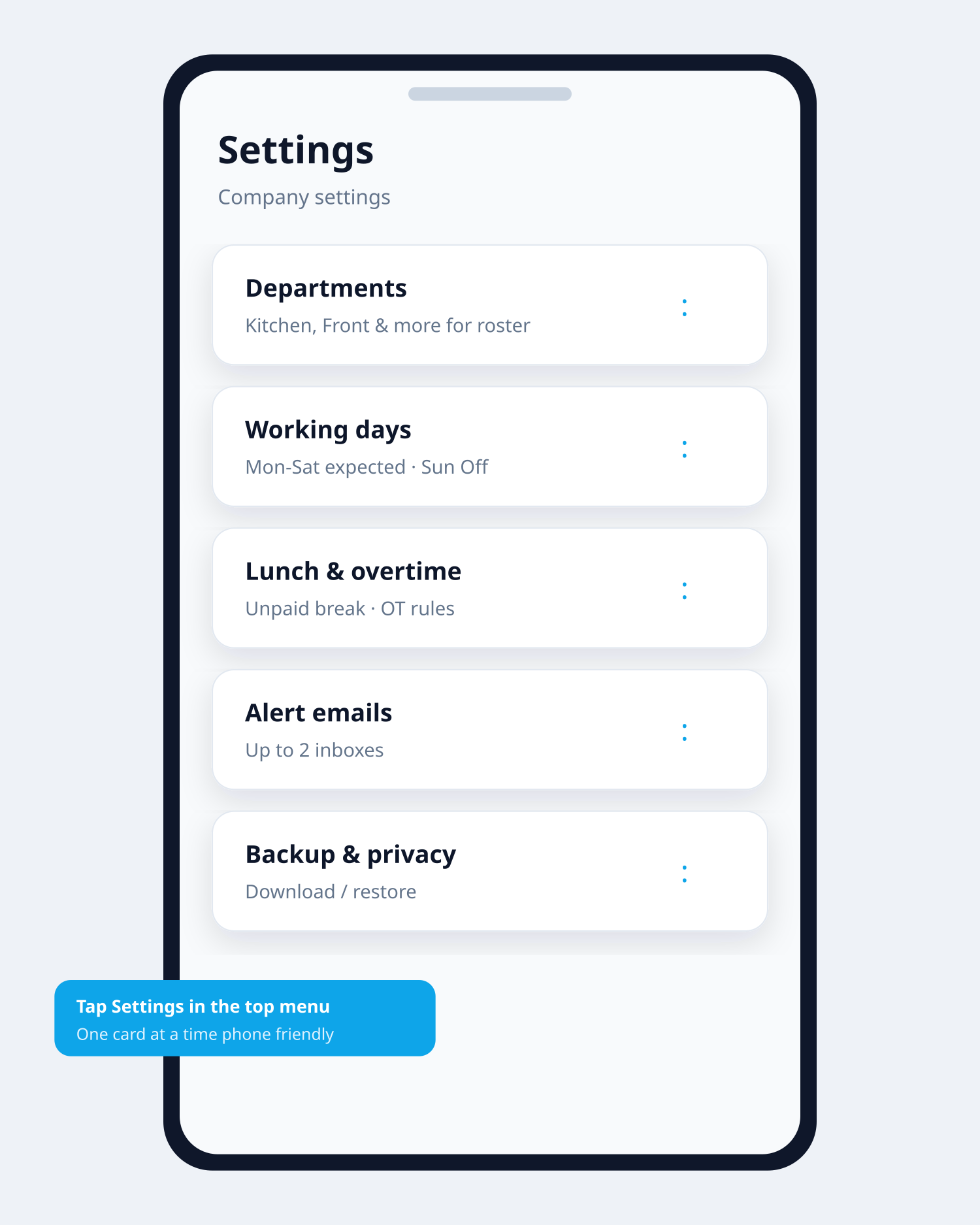
Tap Settings in the top menu. You will see the title Company settings and several cards stacked for phone scrolling.
Step 2
Managers (pointer only)
This card does not create managers. It reminds you to open People and use Make manager or Make admin on someone’s card. Max 2 managers and 2 admins. Managers need an email.
Step 3
Departments
Tap Open departments. Create groups like Kitchen, Front, Counter (up to 20). Assign staff to a department with an optional job title (e.g. Chef). Departments power the roster planner — create them before you build a week.
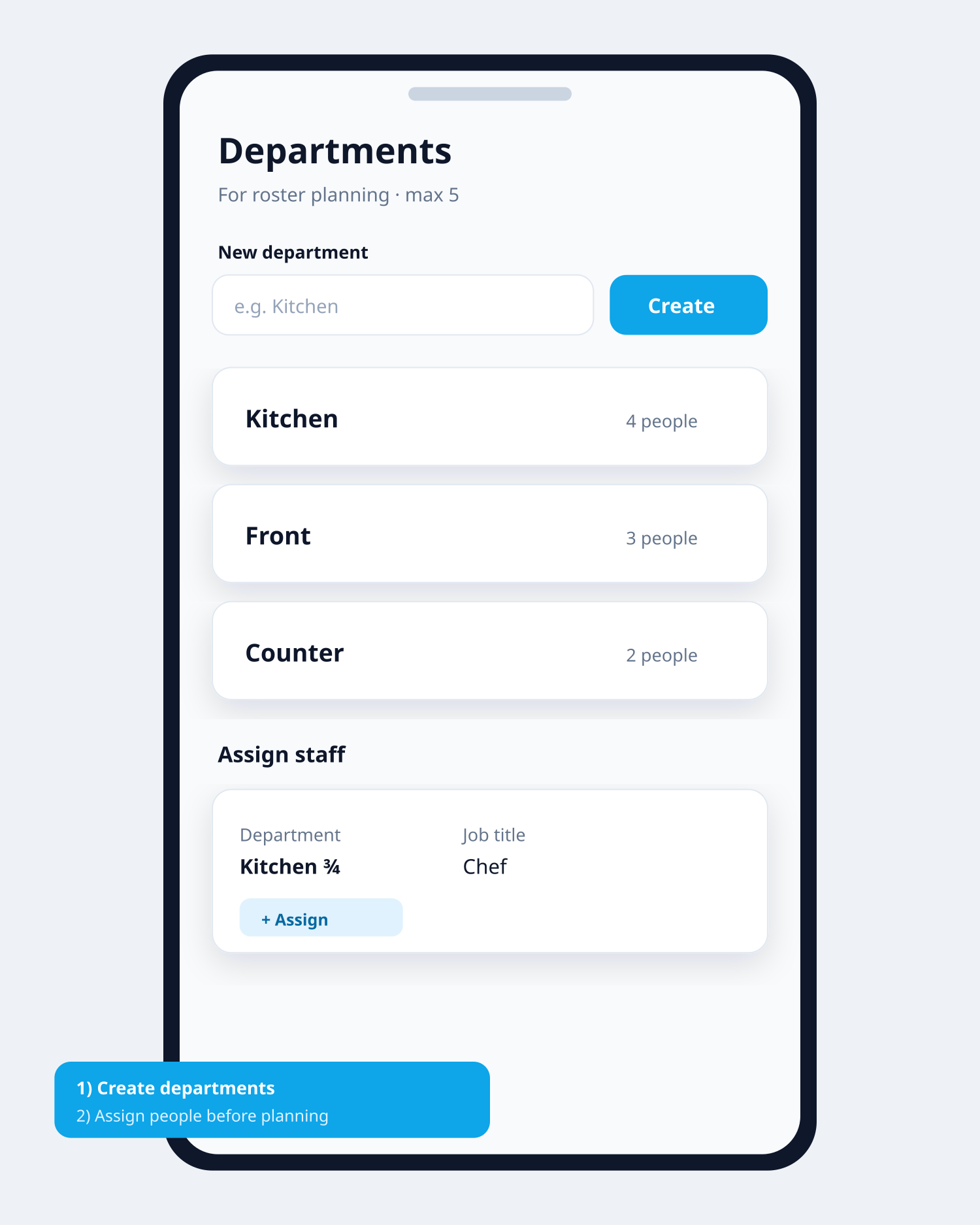
Departments live under Settings → Open departments Step 4
Working days
Tick the weekdays people are expected to work. Days you leave unticked count as Off — not as absence. Turn on Work from home if that fits an office. Tap Save working days.
Step 5
Lunch breaks & overtime
Choose Off, 1 break, or 2 breaks on the attendance clock (Break out → Break in). Or use flat lunch minutes. Set weekly overtime hours. These feed hours on attendance and Payroll Summary. Save when done.
Step 6
Currency
Default is MUR (Mauritius). Change only if you need EUR or USD for the optional money helper.
Step 7
Payroll money rules
Optional Mauritius Payroll MU helper: shift start times, grace minutes, OT rates, transport. This does not pay staff — it only helps fill a money sheet under Reports. Tap Save payroll rules if you use it.
Step 8
Alert emails
Add up to two email inboxes (Alert email 1 and 2). Faciro can notify these when leave needs attention. Use real mailboxes you check.
Step 9
Backup, privacy & data
Open the accordion at the bottom. Download backup exports company data (without password hashes). Restore merge is for careful recovery. Privacy / deletion request log supports DPA requests.
Related guides