Admin or manager · ~6 min
People — add staff and Hik-Connect ID
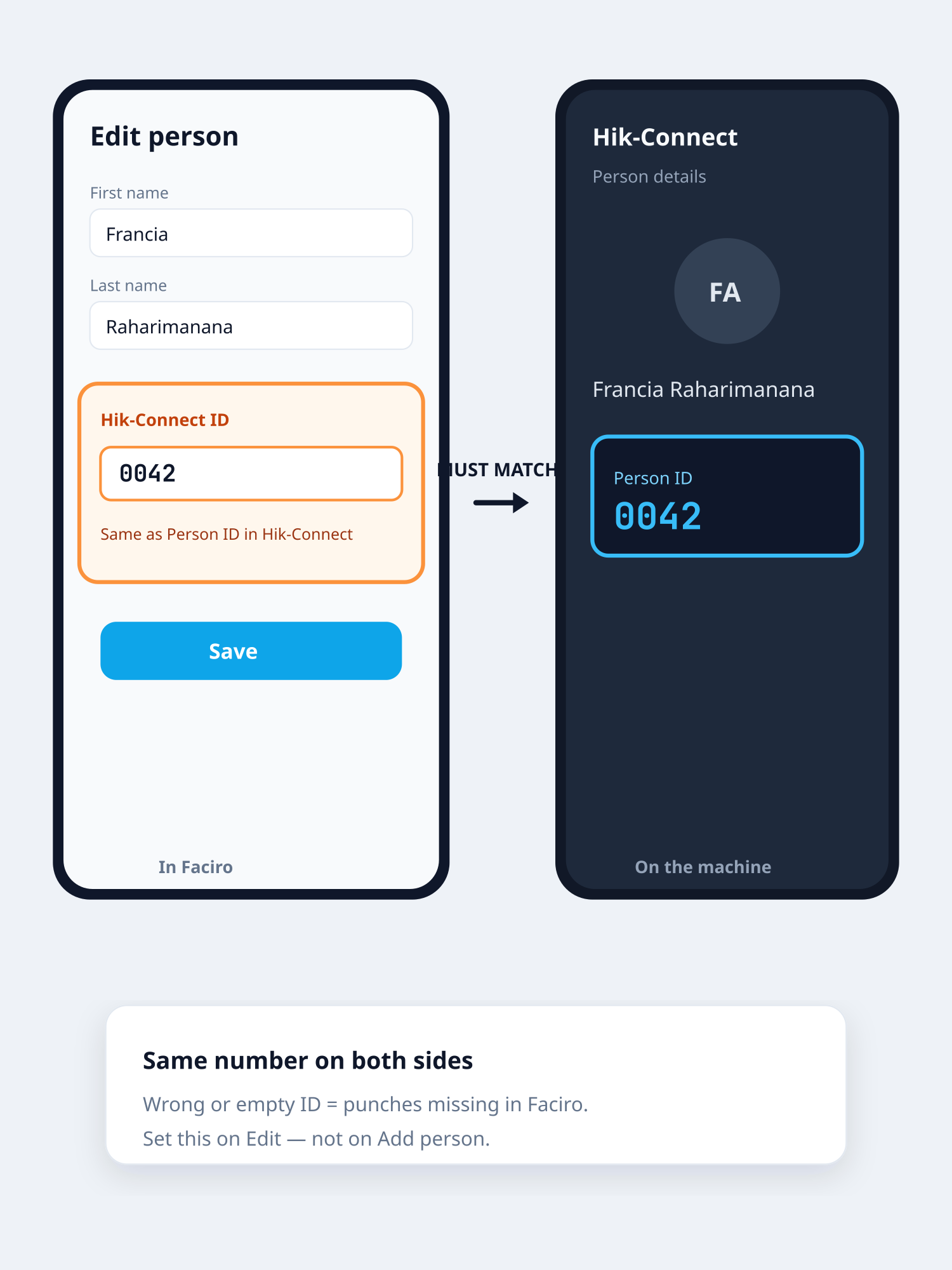
People is your staff list. The Hik-Connect ID must be exactly the same Person ID as on the attendance machine — otherwise punches will not appear for that person.
Step 1
Open People
You will see cards for each person. Admins get three tabs: People (the list), Roles (who runs or watches Faciro), and Branches (shops, clocks, lunch). Use search or role filter if the list is long.
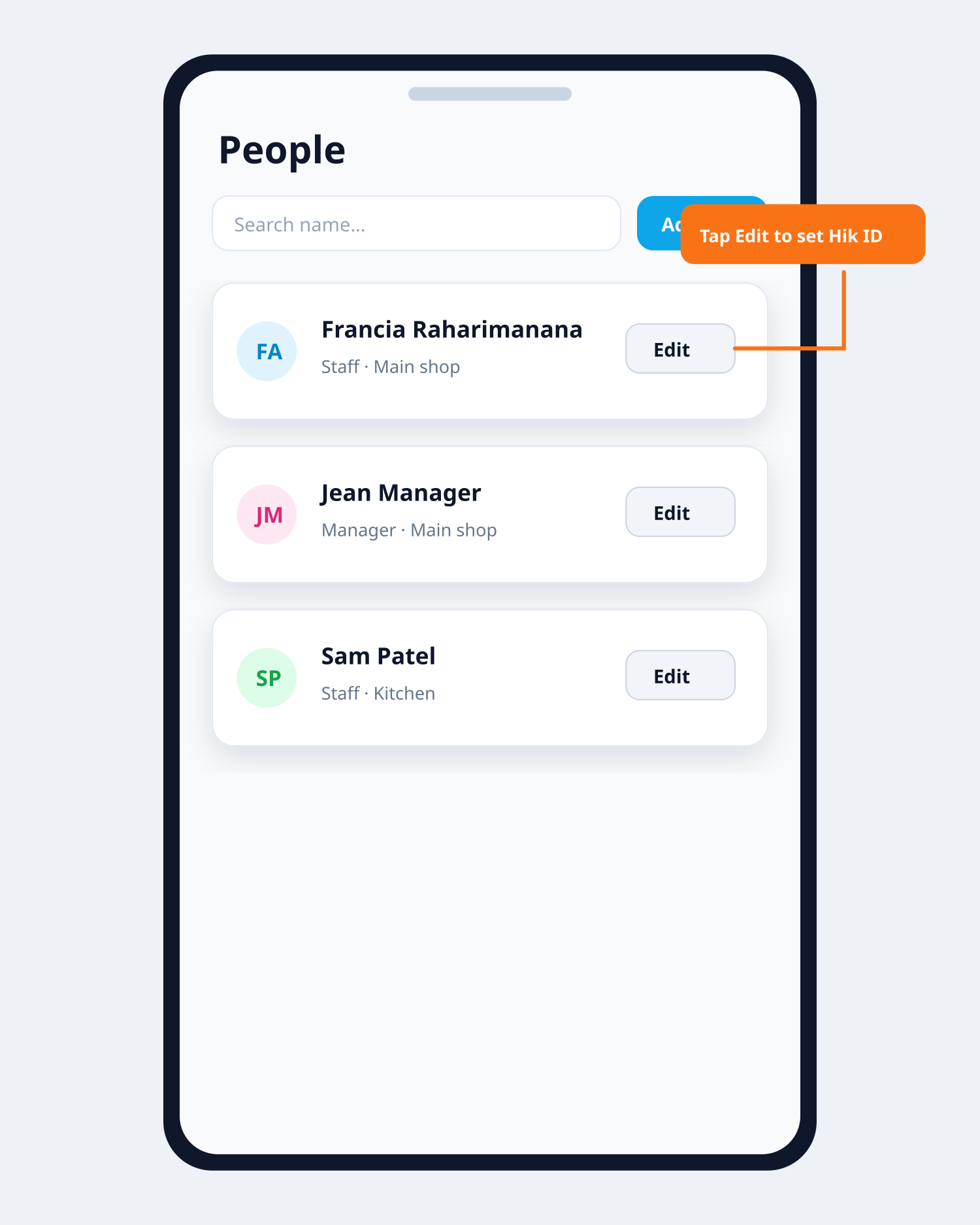
Find someone → tap Edit Step 2
Add a person
Tap Add person (admin) or Add employee (manager). Fill first name, last name, email or phone, and a temporary password. Choose role: Staff, Manager, or Admin. Set who approves their leave if you use managers. Leave balances can be set here for staff.
Step 3
Set Hik-Connect ID when you add them
On the add form (Staff or Manager), fill Hik-Connect ID — same as Person ID on the clock. You can also set or fix it later: tap Edit on their card.
Step 4
Copy the ID from the machine
On Hik-Connect / your attendance device, open that employee and copy their Person ID. Type the same value into Faciro’s Hik-Connect ID field. Placeholder text says: “Same as Person ID in Hik-Connect”.
Must match — wrong ID = missing punches Step 5
Why it must match
When someone clocks in, the machine sends that Person ID. Faciro looks up the same ID on People. If the numbers differ (extra zero, wrong person, blank), punches stay missing — hours and Payroll Summary will look wrong.
Step 6
One ID per person
Each Hik-Connect ID can only be used once in your company. Duplicate full names are also blocked — including the same name with first and last swapped (Vincent Allen / Allen Vincent). Admins see these on Overview Needs attention, the bell, and People. Merge duplicates on People if it is one person, or add email/phone if they are different people.
Step 7
CSV import tip
If you Add many (CSV), use column hik_id for the clock Person ID. Same rule: must match the machine.
Step 8
Review anytime
People shows each person’s name with their Hik ID (or No Hik ID). Search by name, Hik ID, email, or phone. Tap Edit → check name, shop/branch, leave balances, and Hik-Connect ID → Save. This does not change their password.
Related guides